Learning Modern Linux - Chapter 7
Networking
A topic I’ve gone over before in a few notes now, so if you want a deeper dive on general topics, see this note. What we’re going to look at now is the Linux side of things, and how the Linux protocol deals with connecting to the world wide web. Specifically, the network protocols used and tooling provided.
Basics
Without network connection, everything in the last chapter would be a moot point. There’s no external applications, supply chain past the initial purchase, and connection with the outside world. The tough part about networking is the amount of moving parts between all of the layers.
Linux also abstracts away parts of networking, making it difficult to diagnose problems. To start with our classifications, let’s use categories we’re already familiar with. For hardware, we need to have some Ethernet or WiFi card to enable the connection to happen. Then, in Kernel space, we deal with the TCP/IP stack, which we know is how the connection to the internet is processed and connection is safely made. Finally, in User space, we range from simple commands like ip, to full on GUI applications like a web browser.
The TCP/IP Stack
Made up of 4, sequential layers;
- Link Layer: Allows hardware and kernel drivers to communicate
- Internet Layer: Uses IP protocol to route packets
- Transport Layer: How the end-to-end connection occurs (UDP, TCP)
- Application Layer: Web, SSH, mail, etc.
We’ll move through each layer to see how each builds upon another, until the payload is a compilation of all four steps.
The Link Layer
Some terms before we continue; we know a wired connection as Ethernet, a wireless connection as WiFi, a MAC address or media access control address as the unique 48-character identifier for all hardware, and lastly, an interface is simply a network connection, physical or not.
One of the most important parts on the hardware side of the Link layer is your NIC, or a network interface controller (or card). This is what actually allows you to connect to a network via Ethernet cable. There are two ways to get info on all NIC’s on your system; ifconfig and ip. The former is considered deprecated, so we should be using the latter;
> ip link show
1: lo: <LOOPBACK,UP,LOWER_UP> mtu 65536 qdisc noqueue state UNKNOWN mode DEFAULT group default qlen 1000
    link/loopback 00:00:00:00:00:00 brd 00:00:00:00:00:00
2: wlp192s0: <BROADCAST,MULTICAST,UP,LOWER_UP> mtu 1500 qdisc noqueue state UP mode DORMANT group default qlen 1000
    link/ether 9a:39:d4:22:8e:1h brd ff:ff:ff:ff:ff:ff permaddr 84:9e:56:9c:a0:7b
    altname wlx849e569ca07b
The first option here, lo, is known as the loopback interface. This is sometimes known as localhost as well. What this allows your device to do is to self reference. Sounds confusing, but this is useful in a few different scenarios. Technically this is managed by the next layer, but I wanted to establish a good definition of this concept before moving on. This loopback interface provides a loopback address, that allows things like pings and transmission of packets all locally, without any leak into your network. If you want to build or host a server on your machine that only you have access too, it’s most likely on your loopback address or localhost (most commonly 127.0.0.1).
Another concept shown above is the maximum transmission unit or MTU. This is the maximum byte size for a package. We can see above our loopback interface shows we have a maximum of 65,536 bytes. When looking at option 2, we see the name of our connection (wl for wireless, p192 for PCI bus 192, and s0 for slot 0) as well as some flags telling us the current status of the network. Since we see UP and MULTICAST, everything seems to be operational.
Another useful tool in the Link layer toolbox is the Address Resolution Protocol (ARP) which maps out a IP address for each MAC address. This creates the connection between the Link layer which we’re on now, to the next layer above, the Internet layer. Again, like most Linux things, there is an older deprecated version and a newer more standard version.
First up is arp, which returns the cache of mapped MAC addresses on your system. You can even through in the option -n to prevent hostname resolution and show IP addresses instead;
> arp
Address  HWtype  HWaddress           Flags Mask    Iface
_gateway ether   9a:39:d4:22:8e:1h   C             wlp192s0
Next up is ip neigh or ip neighbor, which will do the same thing as arp with a more modern approach. Again, any more details on either of these commands can be found within their man pages.
Now that I have information on what my NIC is called, I can use the command iw followed by some arguments to learn more about it;
> iw dev wlp192s0 info
Interface wlp192s0
        ifindex 2
        wdev 0x1
        addr 9a:39:d4:22:8e:1h
        ssid MyOptimum 118d2b
        type managed
        wiphy 0
        channel 149 (5745 MHz), width: 80 MHz, center1: 5775 MHz
        txpower 3.00 dBm
Now I can easily see the name of my router, as well as some info on the connection itself, like the WiFi frequency. If you want to gather more traffic related information, you can replace info with link.
The Internet Layer
This section is going to be technically dense, so strap in. We know already the Internet layer is the second-lowest layer, and does the heavy lifting of routing packets from machine to machine. An assumption we should understand before going forward is that the structure of this layer is designed for instability, meaning the active participants in your network (thin connections) are often changing. This assumption helps alleviate issues with devices that are wireless, or move often changing their local environment/outside connection.
This layer is also not focused on the performance of that packet transport. If anything, it just wants to ensure it’s given the best effort possible, trying to send as many packets as possible. Losing one is no big deal.
We are also introduced formally to the worldwide standard for identifying devices; IP addresses. Internet Protocol has two versions we should be concerned with; IPv4 and IPv6. Before we go through each, one example should help clear up some of the more technical jargon we’re about to face; think of your IP address as a regular old mailing address. I don’t have to be concerned with how my mail will get to you or how many methods of transportation it will take to get there; all I need to know is your address, and I can write you a letter from pretty much anywhere in the world.
IPv4
The most basic definition of an IPv4 address is a unique 32-bit number combination to identify a host or process acting as a point of communication via TCP/IP. Traditionally these are 4 octets separated by a period.
One place this IP address is important is inside the IP Header. This is a collection of metadata about a packet being transferred. This was set up by the IETF, or the Internet Engineering Task Force, sent out via a document called the RFC 791 - Internet Protocol. This was instituted all the way back in 1981!
Some of the metadata collected in that header can be see below;
- Source Address: IP address of the sender
- Destination Address: IP address of the receiver
- Protocol: Type of payload (TCP, UDP, or ICMP)
- Time to Live (TTL): Maximum amount of time a packet should exist for
There are definitely other parts that make up that header, but that’s not really the focus of this text so let’s move on.
Another important and modern aspect to this layer is Classless Inter-Domain Routing, or CIDR. We understand the internet to be a network of networks, however, each network is not the same. To differentiate between types of networks (private, public, commercial, other networks, etc.), CIDR was implemented. It has two parts; the network address and how bits/IP addresses fit within that range.
10.0.0.0/24 is a basic example. Let’s math this out; we know an IP address consists of 32 bits. The first 24 bits in this example then is the network, while the remaining 8 bits are all of the available addresses on the network. So, in the above example, IP addresses start at 10.0.0.0 and go up to 10.0.0.255 (technically the first and last spot ((.0 and .255)) are saved for special purposes).
Speaking of saved addresses, there are some reserved IPv4 addresses that will come up often. We already took a look at 127.0.0.0, but there’s also 0.0.0.0, which is a non-routable address that can do a lot of things, but most interestingly for us can refer to all IPv4 addresses available on a given machine. If you want to take a quick look at all the IP interfaces, use ip addr show.
IPv6
The future of Internet Protocol, this time supporting a hexadecimal representation, 8 groups of 16 bits each, separated by a colon. Unfortunately, this will likely not become the standard for some time due to the shear amount of content using IPv4. The two are also not compatible, leading to an even wider gap.
Internet Control Message Protocol
There’s an acronym used up above I personally never heard of we glanced right by; ICMP. The Internet Control Message Protocol is used by low-level components to send things like error messages. One useful feature you can use to test if a website is reachable or not is with the command ping. If you want to use something similar with an IPv6, you would have to use ping6.
Routing
How do the packets that we’ve been talking about this chapter get delivered? The real meat and potatoes of that process is beyond this text, but it does provide a nice overview of how to get routing info, which is super easy with sudo route -n, returning a table with the following info;
- Destination: IP Address of the destination of the packet (
0.0.0.0means unspecified or unknown) - Gateway: Meant for packets not on the same network
- Genmask: Subnet mask used
- Flags: Status flags
- Iface: Network interface used by the packet
The most modern method of obtaining this info is also sudo ip route, and you can even check for connections with traceroute <website>.
The Transport Layer
How do we deal with the packets once they’ve been received? That’s what the transport layer is for. This layer defines the communication between endpoints.
Ports
A concept many people know about but know little about, ports are an important part of the transport layer. Regardless of the protocol used (we’ll come back to that in a second) every connection needs a port. All that makes up a port is a 16-bit number identifying a service available at a given IP address. Since any given machine can have multiple services running at any given time, being able to distinguish between them is crucial.
Just like IP addresses, we reserve specific ports for different things;
- 0 - 1023: Well known ports, reserved for daemons associated with servers and the like. Requires
rootpermissions for usage. - 1024 - 49151: Registered ports, managed by the Internet Assigned Numbers Authority (IANA)
- 49152 - 65535: Ephemeral ports, these cannot be registered. These are used for temporary ports or private services (internal company stuff)
To run what’s being used by your local machine, run nmap -A localhost. However, to be safe, only run this on your own machine and in the comfort of your own private space.
TCP
Remember how I said we’d come back to protocols? Here we are. Transmission Control Protocol, or TCP, is a connection transport layer protocol used in things like HTTP and SSH. It guarantees the deliverance of whatever being sent, and actually re-sends any lost packets.
The TCP header contains the source port, the destination port, a sequence number used in managing delivery order, an acknowledgement number used alongside the SYN and ACK flags to support the three-way handshake operation, the window size, a checksum, and finally the payload or data of the packet.
This protocol is known for it’s back-and-forth communication between sender and receiver being constant from initialization to termination, meaning it can sometimes take a while. There’s also the issue of there being no real security measures in place; you can use Wireshark to collect details on a TCP packet and tshark to inspect the payload itself. In order to implement security, use of the TLS protocol is imperative.
UDP
Unlike TCP, User Datagram Protocol or UDP is connection-less. The receiver does not have to acknowledge the received package, called a datagram. Checksums are still implemented to handle integrity issues, and since most common transactions don’t require precise retrieval of all bits, it is often preferred to TCP. NTO, DHCP, and DNS use UDP.
The header of a UDP packet contain the source port (totally optional btw), the destination port, the length (both the header and data), the checksum (ALSO optional!) and finally the data. A lot less than TCP.
Sockets
A socket is a communication interface provided in Linux, meant to be thought of as a distinct point for incoming data with a unique identity. It’s a combination of a TCP or UDP port and the IP address. Unless you’re working on network-related software, you probably won’t have to use and call them, but we should know how to query them. We can use ss -s, with -s meaning summarize, to learn more about our TCP connections;
> ss -s
Total: 1009
TCP:   26 (estab 8, closed 9, orphaned 0, timewait 9)

Transport Total     IP        IPv6
RAW       1         0         1
UDP       15        9         6
TCP       17        10        7
INET      33        19        14
FRAG      0         0         0
You could also call in ss -ulp to call to restrict it just to UDP, listening sockets, and process information. We could also user lsof again, this time to find any open sockets associated with the process you want.
> lsof -c firefox -i udp | head -5
# Output doesn't fit here nicely- try running it yourself!
DNS
IP addresses, to be put simply, are not “human” enough to remember, nor are they worth it. They can be changed as easily as changing a server to host on, meaning we shouldn’t be wasting our time to remember them. Instead, we remember websites, which are far easier to think about (https://www.mrpointing.com is just too easy to plug in here). Not only is that easier, but we can usually even leave out the protocol and sub-domain if the site is configured correctly.
So we basically want our machines to have not only the names of these websites stored, but the IP address as well. There were a few attempts at resolving this, including keeping all name to IP address connections in a giant single file, which if you think about today would just be an monumental undertaking. This lead to the creation of DNS, or Domain name space. Essentially, a method of tracking and supporting the connection between a URL and IP address.
We should understand the actual term of a Domain name space is alike a tree structure, with . denoting the root of the tree, and each node of the tree contains information about a connection. We also have resource records that are the actual payloads within the nodes or leaves, name servers that contain the information about the domain’s tree, and resolvers, which carry out the extraction of info from a name server given a client request. Here’s a basic walk through of how it works;
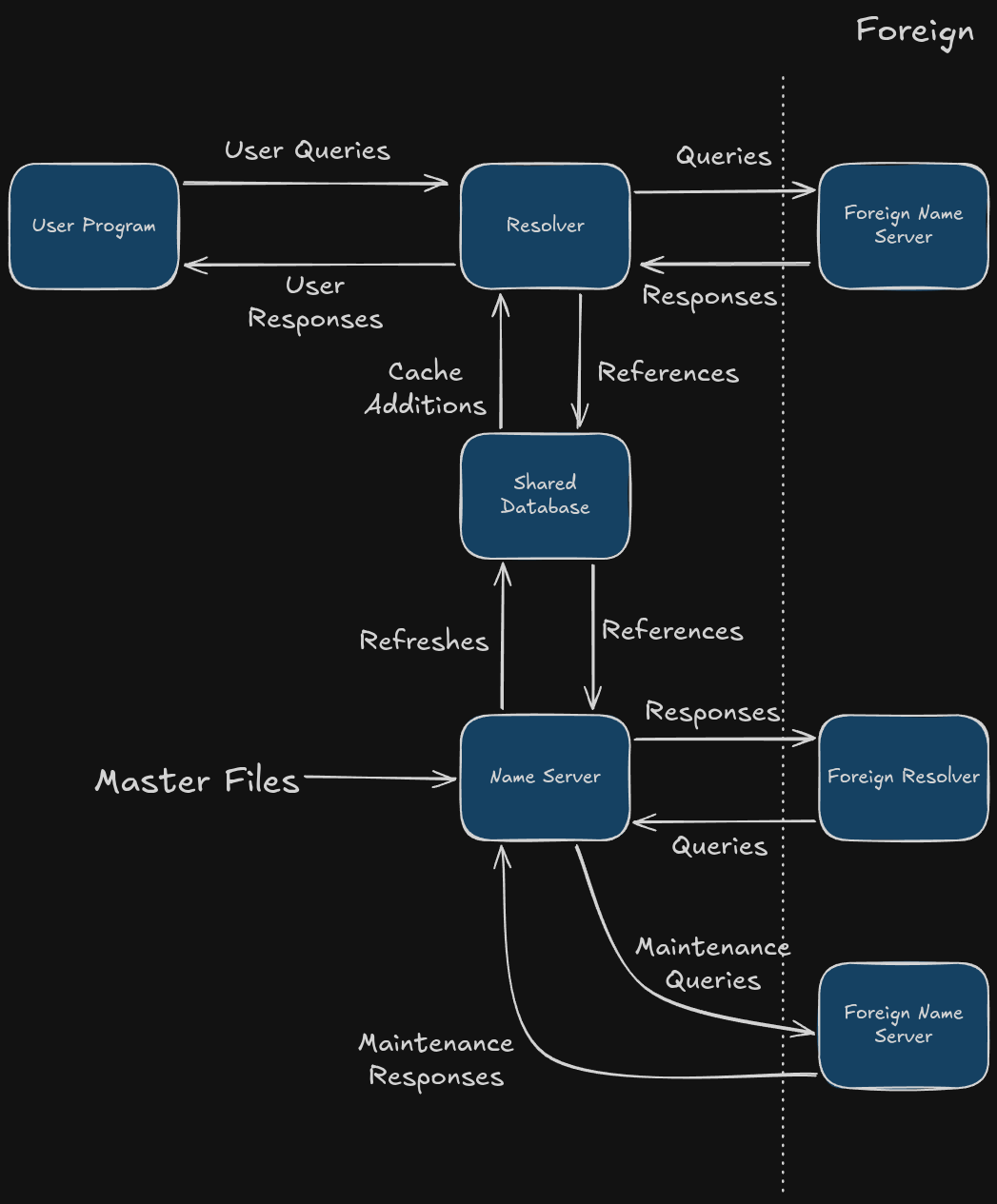
At the base of DNS, since it’s hierarchical, are 13 root servers that sift the records for the TLD’s, or top-level domains. The TLD decides what the end of your URL will be; the Infrastructure TLD is for things like localhost, the Generic TLD or gTLD is for three or more characters like .org and .com, Country TLD or ccTLD is for two-letter country codes, and Sponsored TLD or sTLD are for private agencies/organizations like .aero or .gov.
DNS Records
Within a name server, each record is the type, payload, and other information given for that connection. We sometimes call the full name of our connection as the Fully Qualified Domain Name or FQDN as the address of the node in the name server, and the resource record as the payload in the node.
There are certain types of records, recorded again managed in the name server. Here are some types that might come up;
Arecords andAAAArecords: IPv4 and IPv6 respectively, maps the host-names to IP address of hostCNAMErecords: Canonical name records that provide what’s known as an alias of one name to another nameNSrecords: Records belonging to the name server the delegate the DNS zone to usePTRrecords: Records that exist entirely as pointers used in reverse DNS lookups, which are also the opposite ofArecordsSRVrecords: Records used for service locating; a discovery mechanismTXTrecords: Records containing machine-readable data for security-related DNS extensions
These records are stored in text form called the zone file that a name server reads in to integrate into it’s local database.
$ORIGIN example.com.
$TTL 3600
@   SOA nse.example.com. nsmaster.example.com. (
	1234567890 ; serial number
	21600      ; refresh after 6 hours
	3600       ; retry after 1 hour
	604800     ; expire after 1 week
	3600 )     ; minimum TTL of 1 hour
example.com. IN NS     nse
example.com. IN MX     10 mail.example.com.
example.com. IN A      1.2.3.4
nse          IN A      5.6.7.8
www          IN CNAME  example.com.
mail         IN A      9.0.0.9
We can now breakdown any URL into parts. Let’s do it with mine; www.mrpointing.com.
.comis the TLD, which for me is managed by Cloudflaremrpointing.comis a domain I purchased via Cloudflarewww.mrpointing.comis the subdomain I assigned to my site
Each TLD has it’s own resource record, including my domain mrpointing. Within mrpointing is a resource record for www.
DNS Lookups
Now that we understand how DNS works, we can start to write some queries. The underlying method of these queries is beyond the scope of this class, so we can skip over that and focus on how we’re able to run these queries in Linux.
First up is using host to find both local or global names in either direction;
# Look up local IP address
> host -a localhost
Trying "localhost.student-lan.org"
Trying "localhost"
;; ->HEADER<- opcode: QUERY, status: NOERROR, id: 54393
;; flags: qr aa rd ra; QUERY: 1, ANSWER: 2, AUTHORITY: 0, ADDITIONAL: 0

;; QUESTION SECTION:
;localhost.                     IN      ANY

;; ANSWER SECTION:
localhost.              0       IN      A       127.0.0.1
localhost.              0       IN      AAAA    ::1

Received 71 bytes from 127.0.0.53#53 in 0 ms

# Look up a FQDN
> host mrpointing.com
mrpointing.com has address 104.21.26.166
mrpointing.com has address 172.67.137.98
mrpointing.com has IPv6 address 2606:4700:3030::ac43:8962
mrpointing.com has IPv6 address 2606:4700:3036::6815:1aa6

# Reverse look up of an IP address to find FQDN
> host 185.199.110.153
153.110.199.185.in-addr.arpa domain name pointer cdn-185-199-110-153.github.com.
Application Layer Networking
We understand “The Web” as the space where we can access the internet, and it’s made up of three main parts;
- URLS: Uniform Resource Locators, they act as the identity of a website, which we went over just before in DNS
- HTTP: Hypertext Transfer Protocol, the way in which the application layer interacts with sites
- HTML: Hyper Text Markup Language, the backbone of nearly every website imaginable
URIs are generic version of URLs, and are constructed in a way according to RFC 3986. We can better understand how they are made to better understand HTTP URLs;

The user and password portion are completely optional, and are left from days gone. Nowadays, since we use HTTPS, we have no need for them anymore. The scheme is defined usually as either http or https, and the authority is the hierarchical name discussed in the DNS portion of this chapter. It can be a DNS FQDN or an IP address. The default port is :80; in our example we use another port. The path is to locate resources within your site, and queries and fragments are used to carry across data like from forms.
Obviously, this is not all. We saw the increased use of things like CSS and JavaScript become almost core identifying features of surfing the web. They certainly are nice and make things prettier, but they’re not essential to the use and browsing of the internet.
Let’s move through how an HTTP server works. You can actually use Python’s built in module http.server to get a server going;
$ python3 -m http.server
Serving HTTP on 0.0.0.0 port 8000 (http://0.0.0.0:8000/) ...
127.0.0.1 - - [02/Mar/2026 13:37:14] "GET / HTTP/1.1" 200 -
Now, from any device on the same network, you can visit the link provided or http://localhost:8000 to visit that folder in a web browser. Pretty cool. We could have ran our server via Docker, but I have textbooks on that topic, which I hope to actually get to some day. For now, we can use curl to observe the contents of our new server;
$ curl localhost:8000
<!DOCTYPE HTML>
<html lang="en">
<head>
<meta charset="utf-8">
<style type="text/css">
:root {
color-scheme: light dark;
}
</style>
<title>Directory listing for /</title>
</head>
<body>
<h1>Directory listing for /</h1>
<hr>
<ul>
<li><a href="bash/">bash/</a></li>
<li><a href="c/">c/</a></li>
<li><a href="cap_pokes/">cap_pokes/</a></li>
<li><a href="lua/">lua/</a></li>
<li><a href="models/">models/</a></li>
<li><a href="mr-pointing/">mr-pointing/</a></li>
<li><a href="python/">python/</a></li>
<li><a href="skeys.txt">skeys.txt</a></li>
</ul>
<hr>
</body>
</html>
Secure Shell
A topic I’ve only recently actually put into practice, secure shell or SSH is a protocol for securely connecting to a device on your network. It’s pretty easy to set up; while the text uses a pretty intense looking example, all you need to do is ensure your device has SSH enabled, and run ssh [email protected].
I do enjoy the quick tips section though;
- If you have lots of people
sshinto your machine, disable password authentication so you can have users create keys you can add to an authorized file - If you can’t see anything when
sshinto a machine, runexport TERM=xtermwith the run command
File Transfer
Another extremely useful and common task to be done, transferring files from one device to another is easily done. When working on remote systems, you can use scp, which works on top of ssh. In the following example, we’ll copy a file in our current directory to another machine on our network;
$ scp file_to_copy \ [email protected]:/home/user_2/
We could also use rsync, which is a faster and more convenient method than scp.
Advanced Network Topics
Some more advanced topics that are a bit out of scope of the text, but can be easily Googled for more information.
First up, running whois to learn more information about a given domain if publicly available;
$ whois mrpointing.com
Domain Name: MRPOINTING.COM
   Registry Domain ID: 2905732341_DOMAIN_COM-VRSN
   Registrar WHOIS Server: whois.cloudflare.com
   Registrar URL: http://www.cloudflare.com
   Updated Date: 2025-07-06T04:42:35Z
   Creation Date: 2024-08-05T22:06:15Z
   Registry Expiry Date: 2026-08-05T22:06:15Z
   Registrar: Cloudflare, Inc.
   Registrar IANA ID: 1910
   Registrar Abuse Contact Email: [email protected]
   Registrar Abuse Contact Phone: +1.6503198930
   Domain Status: clientTransferProhibited https://icann.org/epp#clientTransferProhibited
   Name Server: BRADEN.NS.CLOUDFLARE.COM
   Name Server: MALEAH.NS.CLOUDFLARE.COM
   DNSSEC: unsigned
...
tshark and wireshark are software tools used to analyze low-level network traffic. They are command and GUI tools, respectively. tshark is relatively easy to use; sudo tshark -i network_device tcp to only look at TCP traffic, while wireshark is a bit more complicated
Chapter Summary
- 4 layers make up the TCP/IP stack: link, internet, network, and application
- Link allows for hardware & kernel drivers to communicate, internet routes the packages, transport delivers the packages, and the application is how we manage/control the delivery
ip addressto find my device’s Network Interface Card name, orip routeto show ARP table- Protocols determine how network traffic is dealt with; how to address loss, etc
- IP addresses become complex, and difficult to remember, so we use DNS to link IP addresses to names
Chapter Resources
- Interactive visual CIDR and IP range calculator
- Why are IPv4 addresses running out? - Network Engineering Stack Exchange
- How to Read
ip addr - Disable SSH password authentication
- Paper on Packet Network Intercommunication
- Setting up a DHCP Server
- IPv4 to IPv6 Short Tutorial
- Full Guide on IPv6
- Blog Post on UDP Sockets
- Intro to DNS Terminology & Concepts
- Install & Configure DNS Server in Linux
- How SSH Works
- DHCP Linux Server
- Setting up Wireshark
Next: Chapter 8