Learning Modern Linux - Chapter 2
The Linux Kernel
In the last chapter, we gained a new perspective on what an Operating System actually does; gives us the ability to use an API to talk to our system hardware and abstracts out all of the obscure and human-intensive tasks. We’ll take a look now at where the kernel falls into place in this diagram; not as a separate entity, but a crucial part of the OS.
Linux Architecture
The text provides a great diagram of the hierarchy of the Linux architecture;
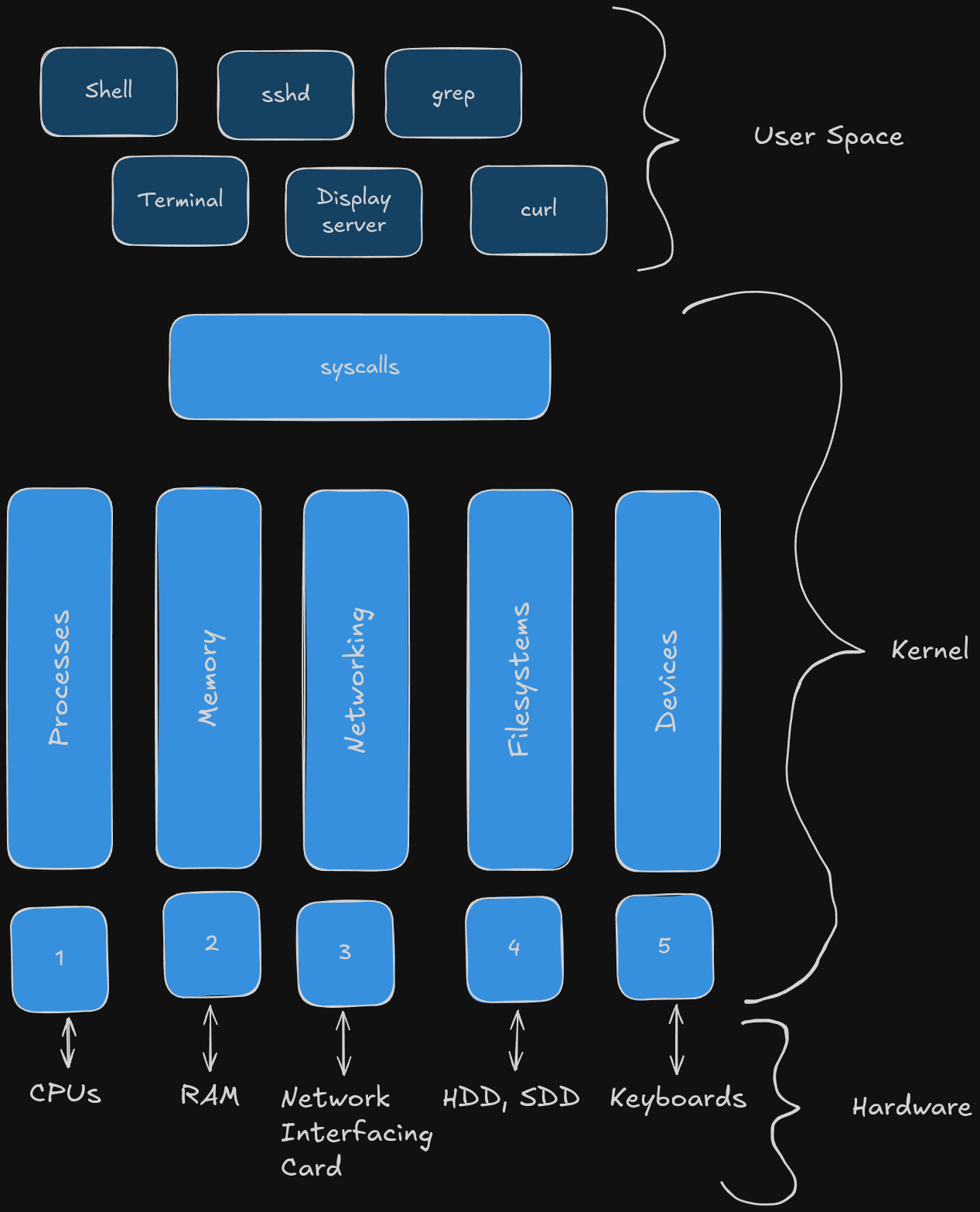
The above splits our device into three distinct sections; User Space, the Kernel, and Hardware. The last is not super relevant, but we are going to go into deeper details of the first two throughout this text.
User Space contains all of the programs we interact with on a daily basis, and is subject to further discussion in later chapters. For now, we’re going to focus on the main objective of this chapter-understanding the kernel. We can split the kernel into five more distinct categories; Processes, Memory, Networking, File systems, and Devices.
A quick thing before we dive deeper into these, sometimes you’ll hear user mode versus kernel mode-user mode is a safer albeit slower environment, while kernel mode is a faster but has more potential for danger since you’re working with limited abstraction. We will look closer at what you would do with kernel mode when discussing syscalls, which we already defined previously.
CPU Architectures
A big drive to use Linux over other OS’s is it’s ability to run on different CPU architectures. To actually see what architecture your CPU is, you can use lscpu in your terminal;
$ lscpu
Architecture:             x86_64
  CPU op-mode(s):         32-bit, 64-bit
  Address sizes:          48 bits physical, 48 bits virtual
  Byte Order:             Little Endian
CPU(s):                   16
  On-line CPU(s) list:    0-15
Vendor ID:                AuthenticAMD
  Model name:             AMD Ryzen AI 7 350 w/ Radeon 860M
...
My machine’s CPU Architecture is x86_64, I have 16 CPU cores, and the name of my chip is the AMD Ryzen AI 7 350 w/ Radeon 860M.
Most devices you’ll run into on a common or daily basis is the x86 Architecture. Coming from Intel, and eventually licensed to AMD, this chip runs somewhat efficiently in desktops, laptops and servers, with some issues with energy. The text did provide a link to more information on x86, but the link is unfortunately dead.
The next important distinction is ARM Architecture. Made within the family of Reduced Instruction Set Computing (RISC) Architecture, is made to contain less instructions than chips like the x86, therefore becoming faster and using less heat. We see these mostly in smartphones and single-board computers (SBC) like the Raspberry Pi. The text also recommends this site that goes over Meltdowns and Spectre, some pretty massive exploits affecting modern devices. This should eventually become it’s own note.
Kernel Components
These are the five larger blocks that make up the kernel in our diagram. They all work together to achieve a seem-less experience where the, “Kernel never breaks user land.” Let’s discuss each part.
Process Management
These are all the processes that deal with the distribution of CPU processes, like running or stopping processes. Linux defines it’s process architecture in the following (largest to smallest);
- Sessions: Container of one or more process groups. Identified by a SID.
- Process Groups: One or more processes. Identified by a PGID.
- Processes: A collection of resources brought together to produce an executable human-facing application. Identifiable via the PID.
- Threads: A process that shares resources with other processes. Identified by TID or TGID.
- Tasks: A data structure defined (
task_struct) to hold onto all the above information and more (signals, scheduling). Not exposed from the kernel.
We can go into more detail on some of these in later chapters. For now, let’s see if we can use some of what we learned and apply it to an actual command;
$ ps -j
    PID    PGID     SID TTY          TIME CMD
 213018  213018  213018 pts/0    00:00:00 bash
 213083  213083  213018 pts/0    00:00:00 ps
We get two returns: the bash shell our terminal is using, and the ps command we used. We can see the PID for each, as well as the PGID and SID. We should notice that since we are using the command in the same session as our bash shell (obviously), our SID is the same. If you want to see all your currently running processes, use pc -a, or pc --help if you want more information.
There are also states we have to be concerned with; a process is either ready, running, waiting, or terminated. It’s a little more complex than that-this article is a quick and concise look at it.
Memory Management
The way memory management works is a tad confusing at first. Each process is given a page of virtual memory, that maps to the physical memory. Different pages of virtual can point to the same physical, which is kind of the point of how memory works in Linux (maintaining that balance).
Modern computing has attempted to keep up with this by implementing a cache called a translation lookaside buffer (TLB) that gives the CPU the page(s) table in need to help find the physical memory address. Linux had a standard of 4 KB for each process, but as of a new version (2.6.3) huge pages are supported with up to 128 TB of possible virtual address space and 64 of physical. You can use proc/meminfo to find out how much RAM you have;
$ grep MemTotal /proc/meminfo
MemTotal:       15627436 kB
$ grep VmallocTotal /proc/meminfo
VmallocTotal:   34359738367 kB
$ grep Huge /proc/meminfo
AnonHugePages:         0 kB
ShmemHugePages:        0 kB
FileHugePages:         0 kB
HugePages_Total:       0
HugePages_Free:        0
HugePages_Rsvd:        0
HugePages_Surp:        0
Hugepagesize:       2048 kB
Hugetlb:               0 kB
Networking
Like we saw in the diagram, the kernel is responsible for networking functions. This is how the network stack works;
- Sockets
- TCP/UDP
- IP
Each of these topics are much more detailed; I have notes on here for the bottom two specifically. There is a chapter on this later that will go into more detail. If you want info on your networking, use ip link or ip route.
Filesystems
Linux has a unique file system that might be confusing if coming from Windows, but isn’t all that different. It’s still stored on your hard drive or solid state drive. We’ll go over more of the different types of file systems in a later chapter.
Device Drivers
A driver is a set of instructions that sit in the kernel and manage a device’s input and output. We have drivers for hardware, GPU’s, and many others. To actually understand drivers and how they interact is beyond the scope of this book, but more can be found here.
Syscalls
We’ve seen how every part of our device has a corresponding part within the Linux kernel. Everything we do goes back to a system call that interacts with the kernel, producing the syscalls we’ve been discussing. They aren’t infinite; there are around 300+, and can differ depending on your CPU architecture. These syscalls make use of the C Standard Library, since Linux is written in C.
Within the kernel is a sys_call_table, that stores pointers for all the system calls within your kernel. Say you wan to open a file; when you write open_file("filename.txt"), the function goes to the C standard library. In this moment control is maintained by an exception handler that ensures a return from the kernel before giving back control into user land.
You can actually see the commands being ran for a certain process using strace (did not come pre-installed in Fedora so I had to download it from my package manager). Be prepared- it’s a lot of output, even for a command as simple as ls. All syscalls can be broken down into not only the five categories we previously discussed, but also Time, Signals, and Global syscalls. A full table of the syscalls can be found within the text.
Kernel Extensions
If it already works, why not keep building on it? The next few concepts are not necessary for understanding Linux; more of an advanced-type beat. We’re certainly not going to be compiling our own kernel, but these should start to peak your curiosity as you become more knowledgeable in Linux.
We already saw before how easy it is to get our system information. To get the exact version of your current kernel, you can run the following;
$ uname -srm
Linux 6.14.6-300.fc42.x86_64 x86_64
Now that we know what kernel version, what can we do with that? Build on top of it! With Modules, we are able to load whatever we want as a program into our kernel to be used whenever we like. What makes modules so nice is that we don’t have to worry about restarting the machine.
Since we saw that Linux itself does most of the heavy lifting, why would we need a feature like this? The text offers a great example- drivers. Say Linux detects a driver for your video card, but the manufacturer has a third-party module that runs better; it’s just not available on the Linux kernel by default. Modules allow us to use the third-party driver without issue.
To see what available modules you have access to, run find /lib/modules/$(uname -r) -type f -name '*.ko*'. The output is massive. Want another massive list full of terms you aren’t familiar with yet? Run lsmod; this will return all of the modules the kernel actually has loaded on your system. There’s also a system called eBPF, which is a pretty recent development and there are still some parts about it even I don’t fully understand. The end of the chapter has a slew of good reading materials on eBPF, the kernel, and it’s inner workings.
Next: Chapter 3