HTML & CSS - Chapter 4
Links
How do we navigate from page to page? Links of course! They’re everywhere, and rightfully so. Without links, we’d only be able to access pages by typing them into our browser one at a time. That would suck. So today, when you click on a link to something, thank whoever came up with links.
This is probably the most complicated tag we’ve written, but it’s pretty logical. Here’s a quick example;
<a href="https://www.imdb.com">IMDb</a>
The a tag encloses a link inside of it, and the href attribute tells your tag where to send you once clicked. The text in-between tags is what your user will see when navigating your page, instead of the verbose hyperlink used in the href attribute.
Absolute vs. Relative URL’s
There are two ways to link; you can link to an external source or an internal page. These are absolute and relative URLs, respectively. URL itself stands for Uniform Resource Locator, which is the link you use to access said web page(s). The above example is an absolute link, taking you to the main page for IMDb. We can leave out the domain name when using a relative URL; the following is how we’d link to other pages that exist in our project directory.
<p>
	<ul>
		<a href="index.html">Home</a>
		<a href="about.html">About</a>
		<a href="now.html">Now</a>
		<a href="contact.html">Contact</a>
	</ul>
</p>
Directory Structure
I just mentioned project directory. What is that? Well, every website is a compilation of a bunch of different files. The directory structure is how we organize these files. Here are some common terms I might use when discussing the structure of our project directory.
- Root: This is the folder that contains the entire project
- Relationship: Each file has a relationship to one another. Some are parent folders, some are children, grandchildren, and even grandparents
- Homepage: The landing page, or first page you visit upon entering your websites URL. Most often called
index.html- All homepages for sub-directories are also called
index.html
- All homepages for sub-directories are also called
Whenever you call a relative URL, how you call it depends on where that file is within the directory structure. For example;
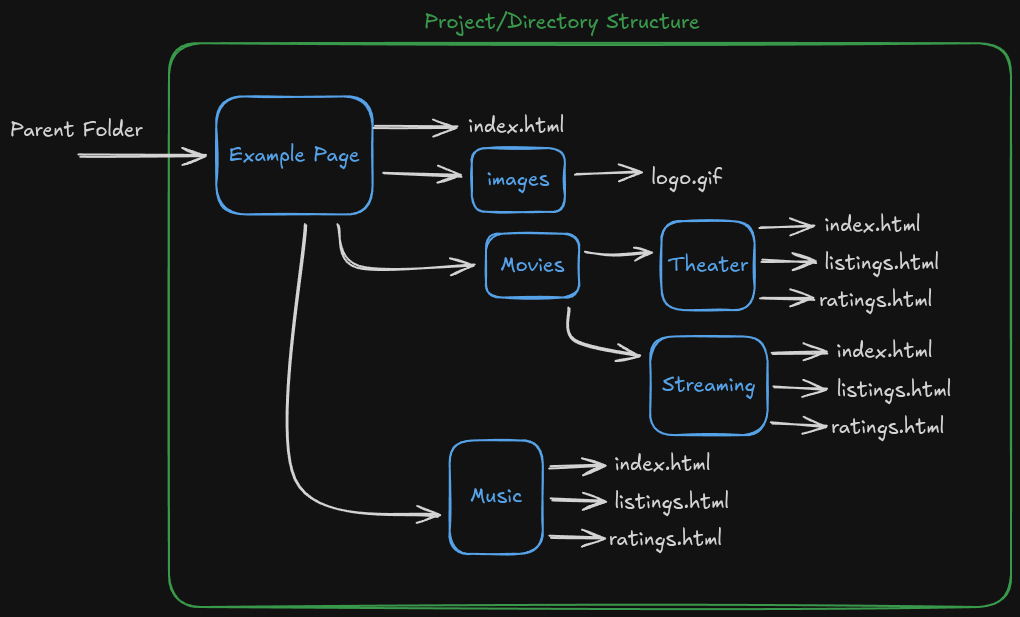
We can see that the “Example Page” folder is our root folder, since everything in our website exists inside of it. There’s a parent relationship between “Example Page” and “images”, and a grandparent relationship between “Example Page” and “Theater”. If you were writing the HTML for the index page in the “Theater” folder, you could link to the ratings like this;
<a href="ratings.html">Ratings</a>
However, if you were linking to the music listings page form your homepage, it would look like this;
<a href="music/listings.html">Music Listings</a>
And another step further, if you wanted to link to your movie streaming ratings page from your homepage, it would look like this;
<a href="movies/streaming/ratings.html">Streamed Movie Ratings</a>
There are a couple of attributes we can attach to a link to give our link special properties. If you wanted to open a link a new tab instead of the current window you’re working in, you can pass target="_blank" into an a tag. If you wanted to have a link open a new email to a specific email address, you can use mailto:[email protected] as the href.
Lastly, if you provide a new attribute called id to your elements, you can actually link to those elements on the same page. For example, say you have a few different headings with a ton of content in between them. You can use the name of the id starting with a hashtag to tell it to bring you to that part of the page. This works for both the same page or another page;
<h1 id="top">Top of the page</h1>
<p>Some content</p>
...
<p><a href="#top">Top of page</a></p>
Summary
- Links are created with the
atag - Pass a value to
hrefto tell your link where you want it to take you - Relative links should be used for local pages, while absolute should be used for links not apart of your website
Next: Chapter 5